
On some Google TVs, pressing the Power button on the remote only puts the TV into standby mode instead of completely shutting it down.
On most TVs, pressing and holding the Power button opens a Power Dialog Menu with options such as Shutdown, Restart, and Cancel.
This solution is intended for Google TVs where the Shutdown option is missing and for users who want to completely shut down their TV instead of putting it into standby mode.
Note: This article is intended only for advanced users who understand how to side load apks to tv as well how to run adb commands with a computer.
How its done?
We will leverage two apps called KeyMapper and Shizuku .
Download and install both apk to tv.
We also need to allow Accessibility permissions for KeyMapper and Allow app to start on boot (which is doable by running below adb commands)
adb shell appops set io.github.sds100.keymapper AUTO_START allow
adb shell appops write-settings
Note: while enabling android debugging in developer settings, it is also good idea to set wireless debugging to a static port,
adb tcpip <DESIRED PORT>
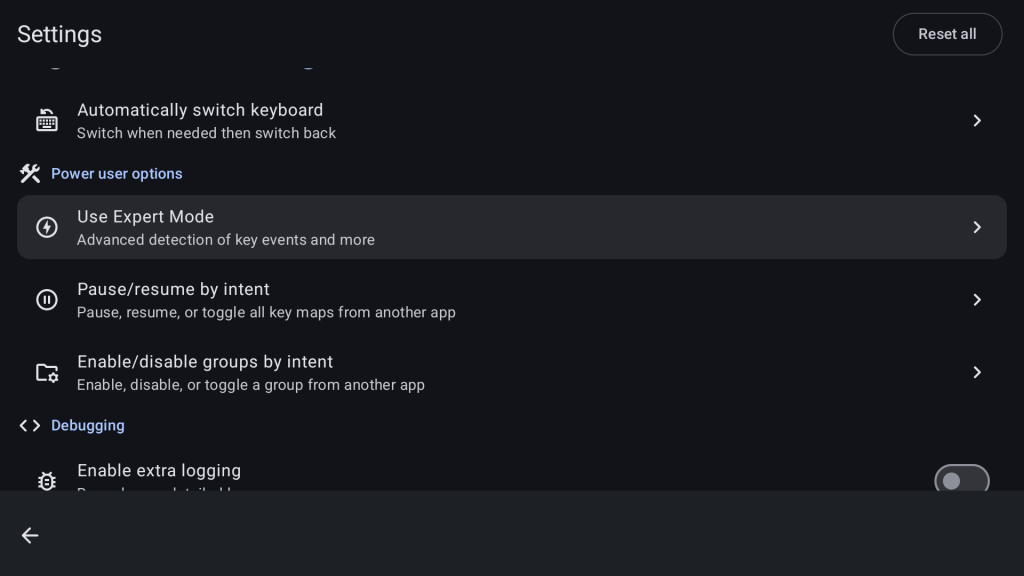
Once KeyMapper is installed, you need to launch KeyMapper and go to Settings -> Use Expert Mode
Inside Expert Mode enable Auto start and keep alive
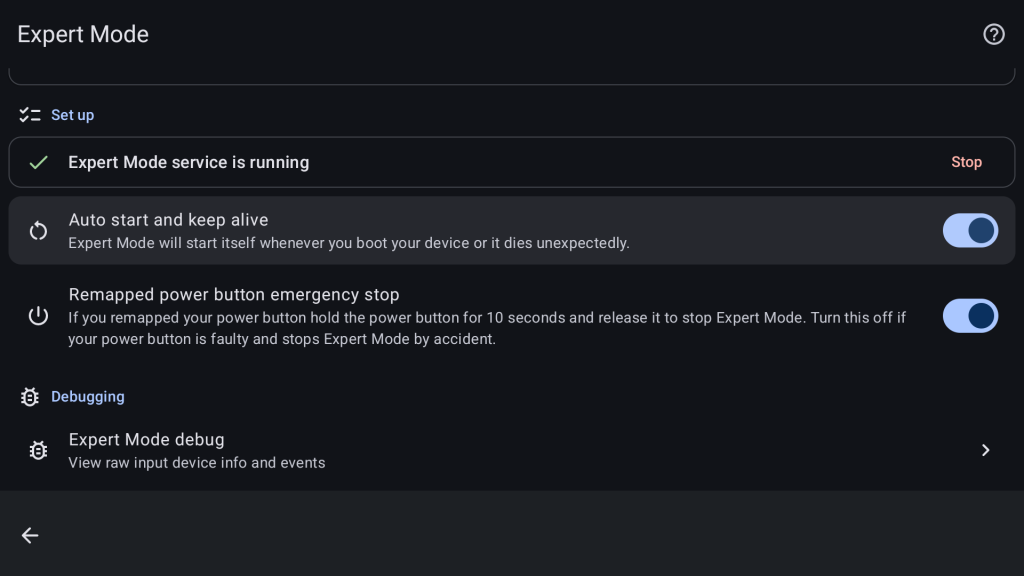
If Expert Mode Service is not running, ignore that for now. We will start it later step.
Next Add Trigger and Action as below in the KeyMapper app with your desired button.
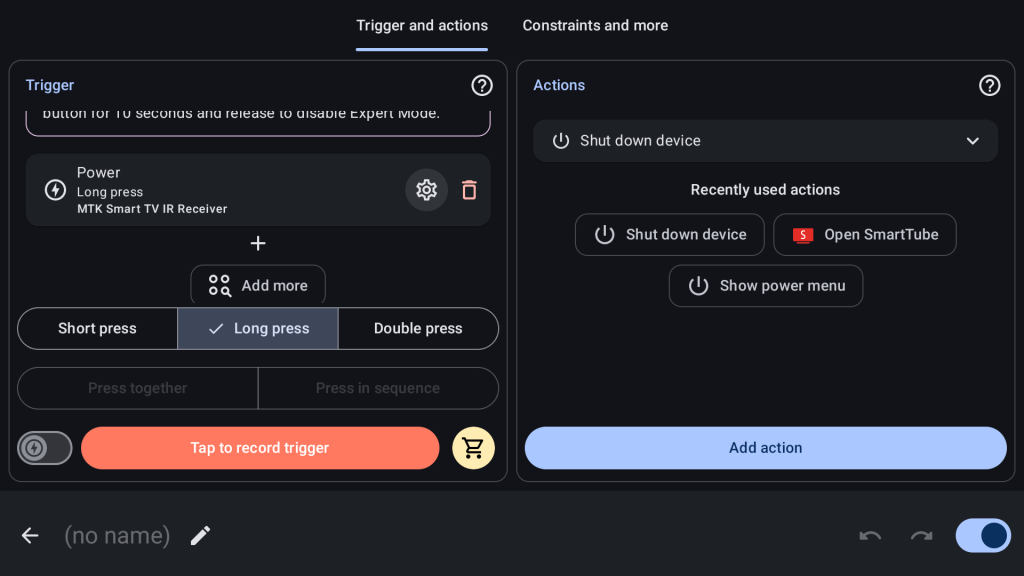
Now we need to start Shizuku service using adb command and that will make Expert Mode Service running.
adb shell sh /storage/emulated/0/Android/data/io.github.sds100.keymapper/start.sh
Verify inside KeyMapper settings Expert Mode Service is running.
Test the button to confirm TV Shutdown action is working.
Note: In KeyMapper app to clear the battery optimization warning you can run below command,
adb shell dumpsys deviceidle whitelist +io.github.sds100.keymapper
One issue here is, every time tv is restarted, we need start Shizuku manually.
The approach I took is, I have a Raspberry Pi 5 server which is running 24/7 in my LAN. So I made custom service to ping TV ip address, and when its available run another script to run the adb command.
My custom script is as below,
#!/bin/bash

set -u

TV_IP="192.168.0.228"
TV_ADB="${TV_IP}:5555"
KEYMAPPER_SCRIPT="/storage/emulated/0/Android/data/io.github.sds100.keymapper/start.sh"

# 0 = startup command has not succeeded for this online session
started=0
failed_pings=0

log() {
    echo "$(date '+%F %T') $*"
}

while true; do
    if ping -n -c 1 -W 1 "$TV_IP" >/dev/null 2>&1; then
        failed_pings=0

        if [ "$started" -eq 0 ]; then
            log "TV reachable; connecting to ADB"

            # Ensure the ADB connection is established.
            adb connect "$TV_ADB" || true

            # Wait until Android has completed booting and ADB is ready.
            while ping -n -c 1 -W 1 "$TV_IP" >/dev/null 2>&1; do
                adb connect "$TV_ADB" >/dev/null 2>&1 || true

                if timeout 5 adb -s "$TV_ADB" shell \
                    'test "$(getprop sys.boot_completed)" = "1"' \
                    2>/dev/null; then
                    break
                fi

                sleep 2
            done

            # Only proceed if the TV is still reachable and booted.
            if ping -n -c 1 -W 1 "$TV_IP" >/dev/null 2>&1 &&
               timeout 5 adb -s "$TV_ADB" shell \
                   'test "$(getprop sys.boot_completed)" = "1"' \
                   2>/dev/null; then

                log "Android boot completed; starting Key Mapper Expert Mode"

                if timeout 15 adb -s "$TV_ADB" shell \
                    sh "$KEYMAPPER_SCRIPT"; then
                    log "Key Mapper startup script succeeded"
                    started=1
                else
                    log "Startup failed; will retry"
                fi
            fi
        fi
    else
        failed_pings=$((failed_pings + 1))

        # Require 3 consecutive failed pings before treating the TV as offline.
        if [ "$failed_pings" -ge 3 ] && [ "$started" -ne 0 ]; then
            log "TV appears offline; resetting startup state"
            started=0
        fi
    fi

    sleep 3
done
Custom service as below,
[Unit]
Description=Start TCL TV Key Mapper Expert Mode after boot
Wants=network-online.target
After=network-online.target

[Service]
Type=simple
User=pi
Environment=HOME=/home/pi
Environment=PATH=/usr/local/bin:/usr/bin:/bin
ExecStart=/home/pi/scripts/tcl-keymapper-watch.sh
Restart=always
RestartSec=5

[Install]
WantedBy=multi-user.target
Enable the service and check status as below,
sudo systemctl daemon-reload
sudo systemctl start tcl-keymapper-watch.service
sudo systemctl status tcl-keymapper-watch.service
Leave a Reply