
What this configuration does
This configuration allows you to block Internet/network access for a specific Wi-Fi device during a scheduled time, while allowing the device to remain connected to the Wi-Fi network.
For example:
                    SSID
                     │
                     │
              ┌──────▼──────┐
              │ iPhone MAC  │
              │ MAC-based   │
              │ role match  │
              └──────┬──────┘
                     │
                     ▼
            Scheduled_WiFi_Block
                     │
          ┌──────────┴──────────┐
          │                     │
    During schedule        Outside schedule
          │                     │
       DENY all              ALLOW all
          │                     │
          ▼                     ▼
     No Internet           Normal Internet
The device does not need to disconnect from Wi-Fi. During the blocked period it can remain associated with the AP, but its traffic is denied.
1. Create a Time Range
Log into the Aruba Instant WebUI.
Go to:
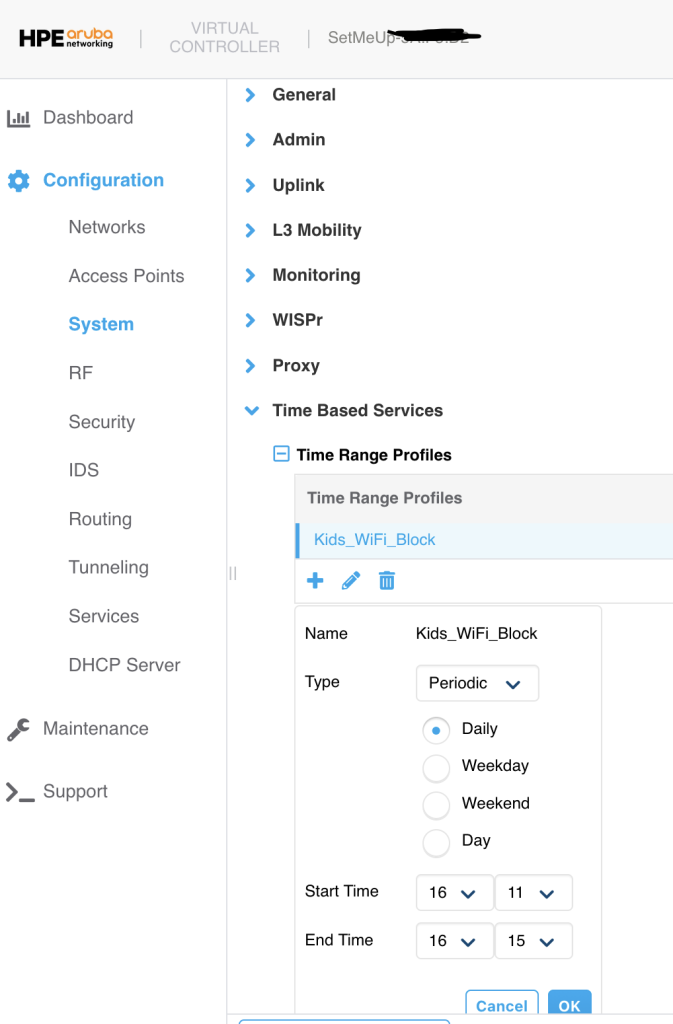
Configuration → System → Show advanced options → Time Based Services
Under Time Range Profiles, click +.
Create a time-range profile.
For example, during testing I used:
Profile Name: Kids_WiFi_Block
Type: Periodic
Start: 16:11
End: 16:15
2. Create a dedicated role
Go to:
Configuration → Security → Roles
Create a new role:
Scheduled_WiFi_Block
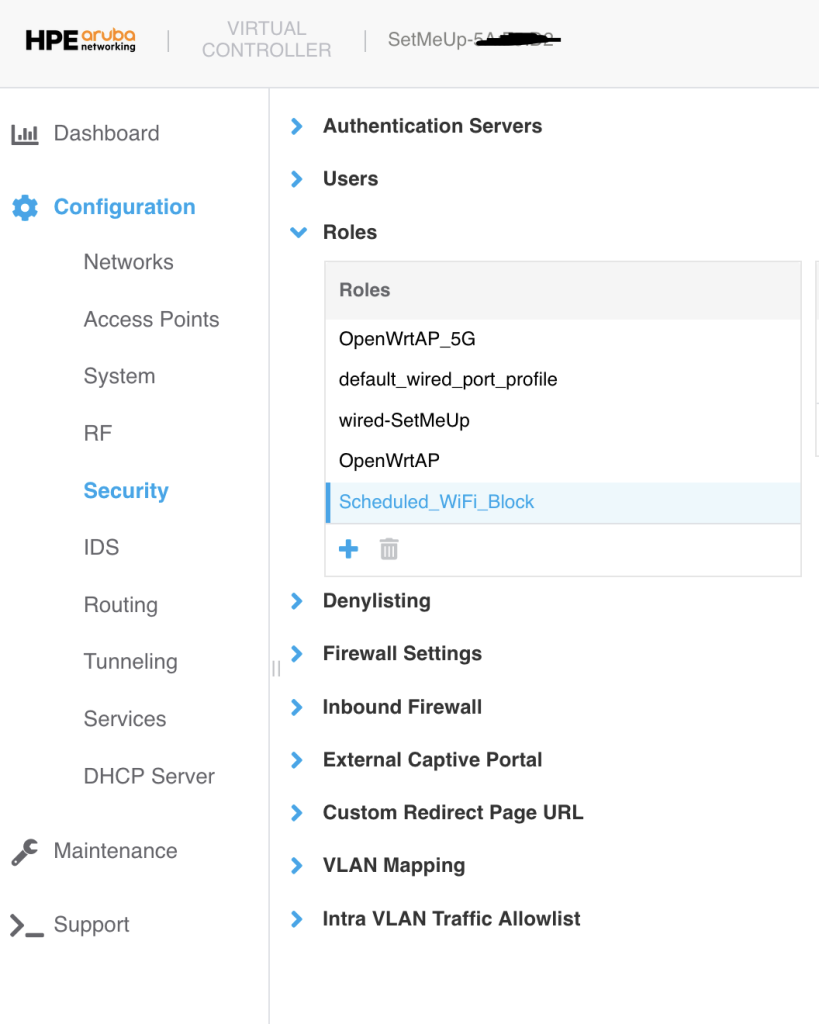
Select the new role.
You’ll see:
Access Rules for Scheduled_WiFi_Block
Initially there will normally be an allow rule such as:
Allow any to all destinationsDo not delete this rule.
Instead, click the + button to create another access rule.
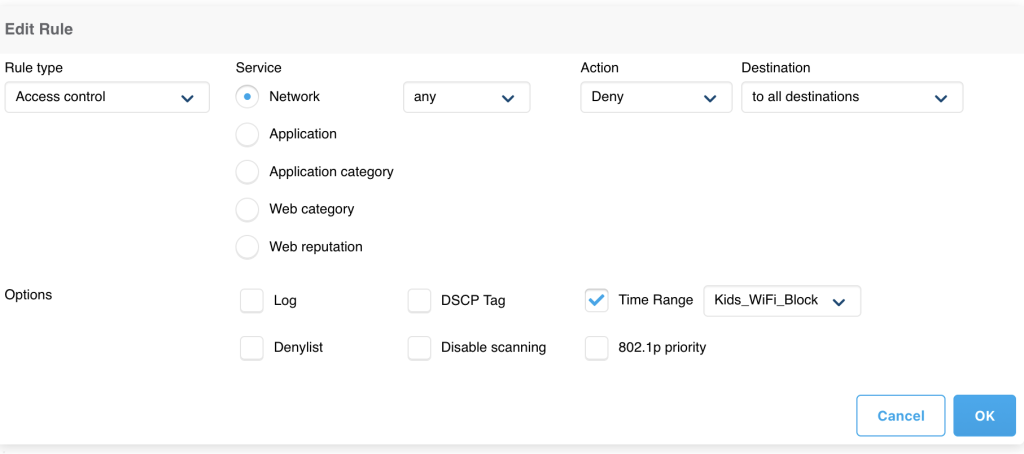
The resulting rule should essentially be:
Deny any to all destinations
Time Range: Kids_WiFi_Block
4. Rule ordering is important
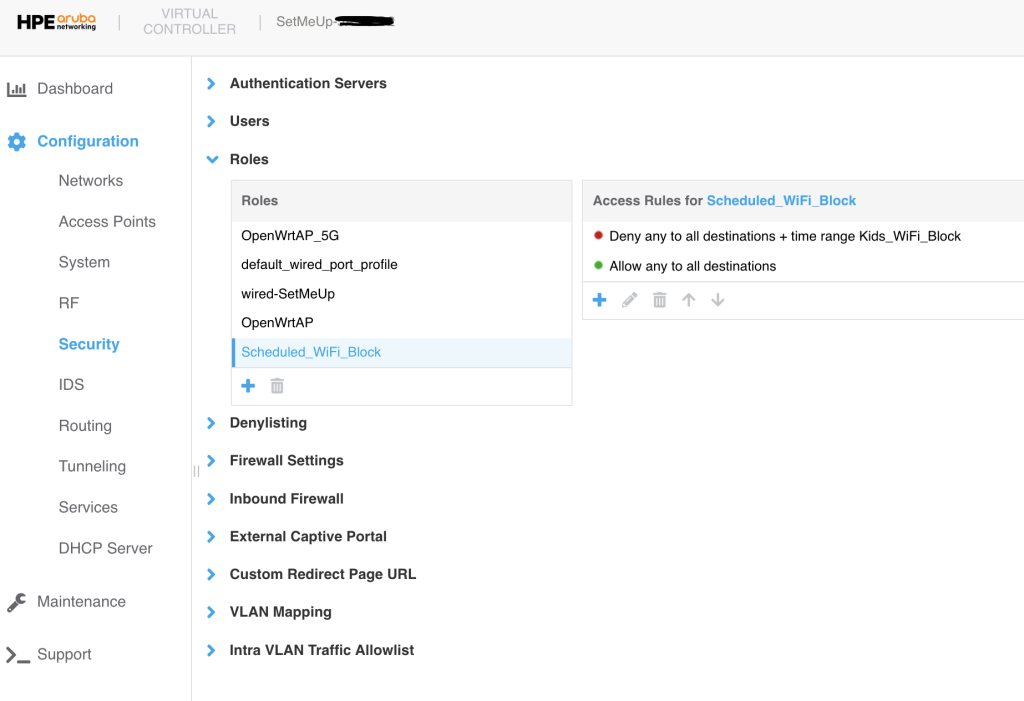
The role should contain the rules in this order:
1. DENY any → all destinations
   Time Range: Kids_WiFi_Block

2. ALLOW any → all destinations
The DENY rule must be above the general ALLOW rule.
Why?
During the scheduled period:
DENY rule = active
       ↓
Traffic is blocked
Outside the scheduled period:
DENY rule = inactive
       ↓
ALLOW rule matches
       ↓
Traffic works normally
This is the key to making the schedule work without having to dynamically change the client’s role.
5. Change the SSID to Role-Based access
Now configure the SSID.
Go to:
Configuration → Networks → OpenWrtAP_5G → Edit → Access
You’ll find:
Access Rules
with options such as:
Unrestricted
Role Based
Network Based
Select:
Role Based
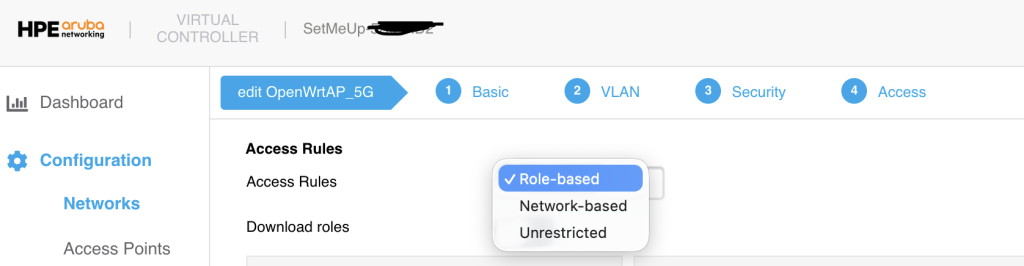
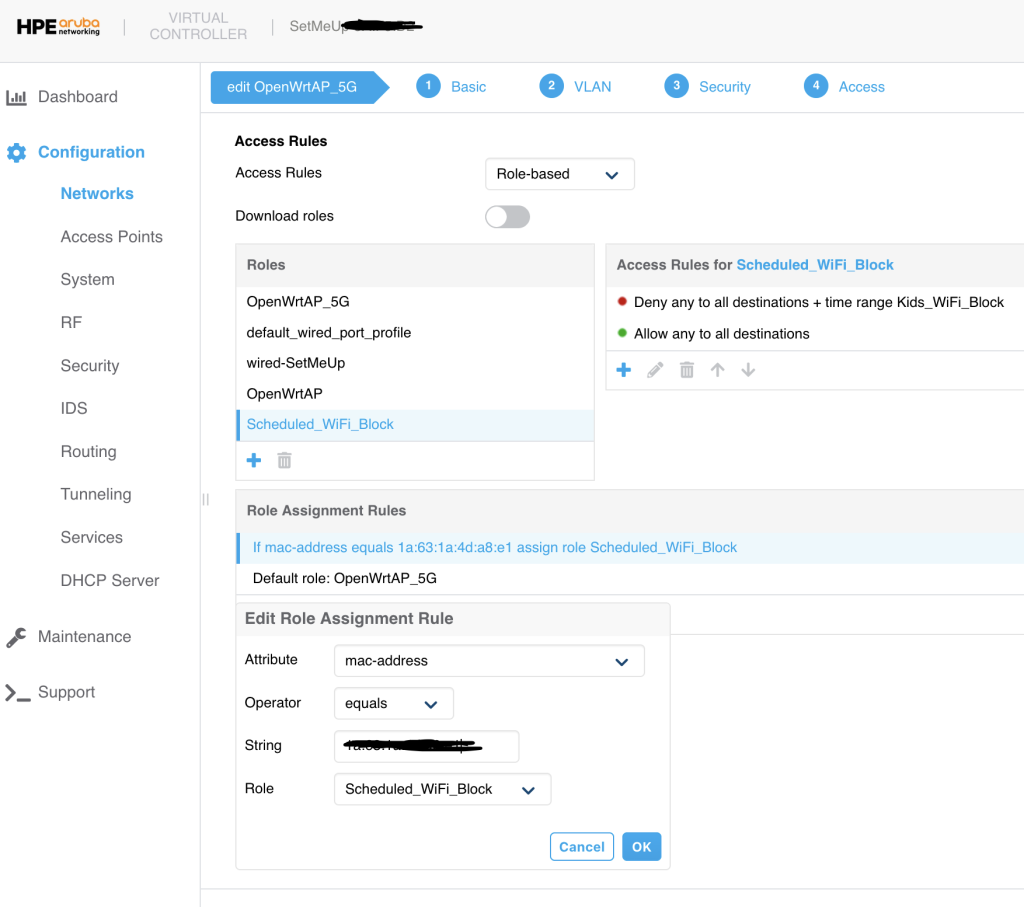
You’ll then see the available roles, including:
OpenWrtAP_5G
default_wired_port_profile
wired-SetMeUp
OpenWrtAP
Scheduled_WiFi_Block
You’ll also see:
Role Assignment Rules
Default role: OpenWrtAP_5G
Keep the default role
This is important.
Leave:
Default role: OpenWrtAP_5GThis means clients that don’t match our special rule continue using the normal OpenWrtAP_5G role.
6. Create the MAC-based role assignment
Under:
Role Assignment Rules
click +.
Create a rule matching the target device’s MAC address.
For example:
| Setting | Value |
|---|---|
| Attribute | MAC Address |
| Operator | equals |
| MAC address | xxxxxxxxxxxxx |
| Role | Scheduled_WiFi_Block |
Aruba’s documentation specifically lists mac-address as a supported role-assignment attribute and describes creating these rules under Configuration → Networks → Access → Role-based → Role Assignment Rules.
The resulting logic is:
MAC xxxxxxxxxxxxxxxxxxxx
             │
             ▼
Scheduled_WiFi_Block
All other clients continue to use:
OpenWrtAP_5Gbecause that is the default role.
9. Verify the time range from CLI
Your AOS-8.13.3 CLI provides:
show time-rangeExample:
aruba-ap# show time-range

Current Time     :2026-09-12 16:13:06
Time Range Summary
------------------
Profile Name     Type      Start Day  Start Time  End Day  End Time  Valid
------------     ----      ---------  ----------  -------  --------  -----
Kids_WiFi_Block  Periodic  daily      16:11       -        16:15     Yes
The important field is:
Valid: Yesduring the scheduled period.
Outside the period it changes to:
Valid: No10. Verify where the time range is being used
Run:
show time-profileOur AP showed:
Time Range ACL Profile
----------------------
Time Profile Name  Access Role Name          Rule
-----------------  -------------------------  ----------------
Kids_WiFi_Block    Scheduled_WiFi_Block       any any match any any any deny time-range Kids_WiFi_Block
This is an excellent troubleshooting command because it confirms that the time profile is associated with the intended role/rule.
12. Verify the client has the correct role
Use:
show clientsThe relevant client should show something like:
Name       IP Address    MAC Address          ESSID          Role
iPhone     192.168.0.217 xxxxxxxxxxxxxxx    OpenWrtAP_5G   Scheduled_WiFi_Block
This is an important distinction:
The client does NOT change back to OpenWrtAP_5G when the schedule ends.
The iPhone continues to have:
Scheduled_WiFi_Blockas its assigned role.
What changes is whether the time-restricted DENY rule inside that role is active.
Leave a Reply